User Manual
Complete guide for employees and administrators
Employee Guide
1. Home Page
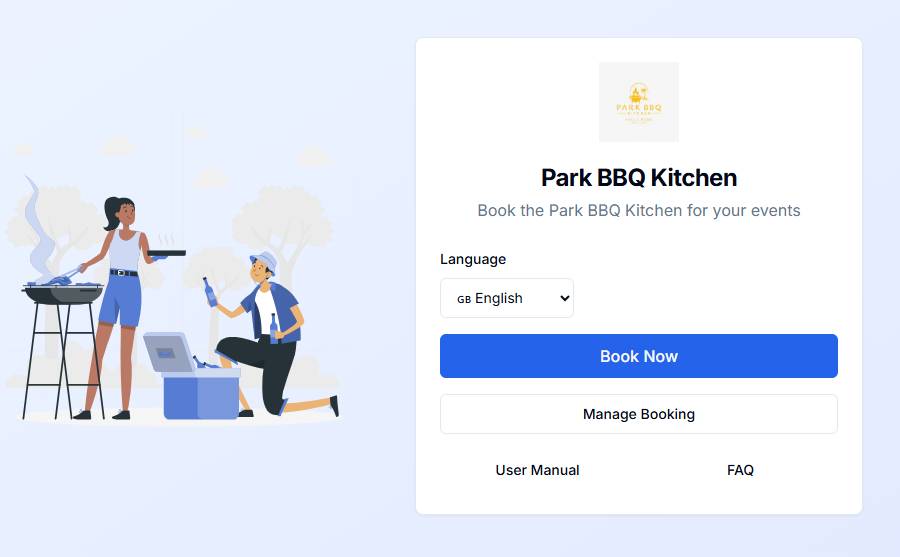
Open the application URL, select your preferred language, then click "Book Now" to create a new booking or "Manage Booking" to view/change existing bookings.
2. Booking a Kitchen Slot
Important Booking Restrictions:
- 3-Day Booking Window: You can only book for today, tomorrow, or the day after tomorrow (maximum 3 days in advance)
- 2-Hour Prior Booking: You can only book slots that are at least 2 hours in the future
- The calendar will only show available dates within the 3-day window
- Click "Book Now" on the home page
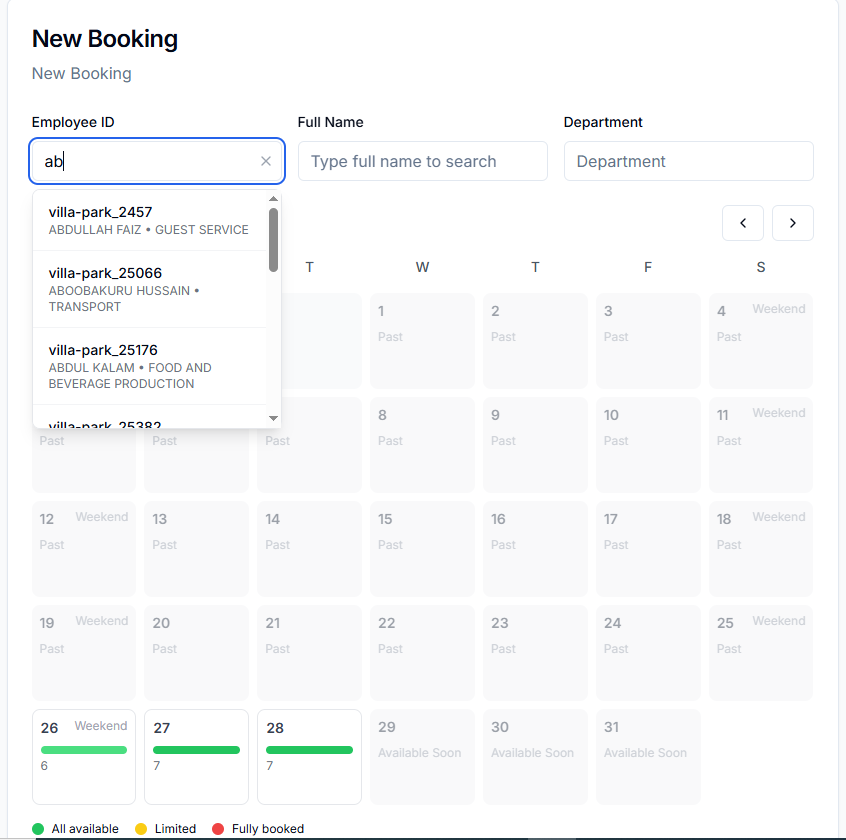
- Select your name from the dropdown or search by name
- Enter your Employee Code (e.g., 13011)
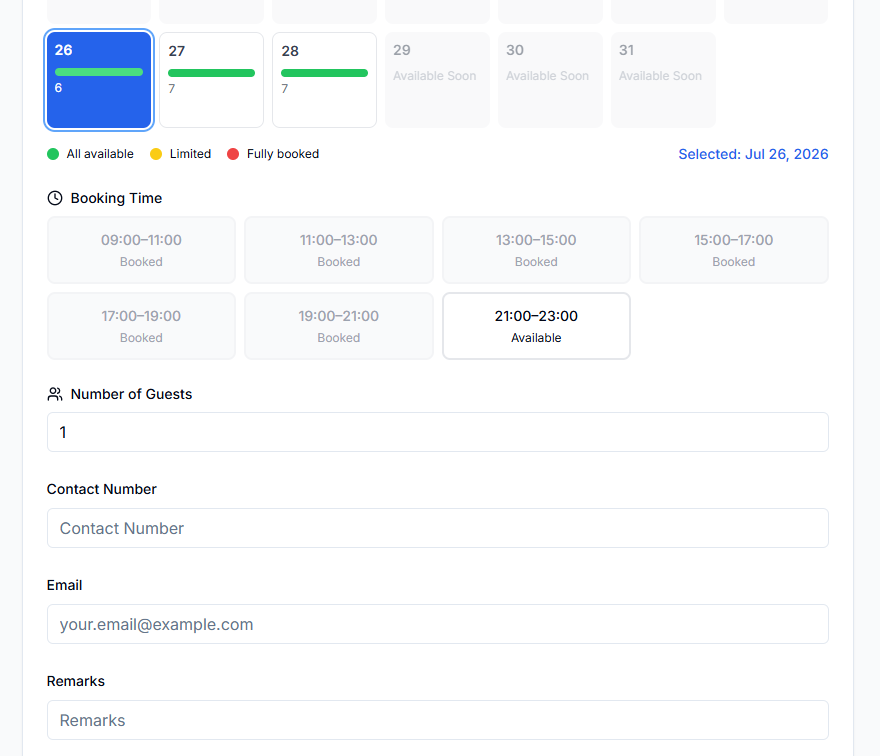
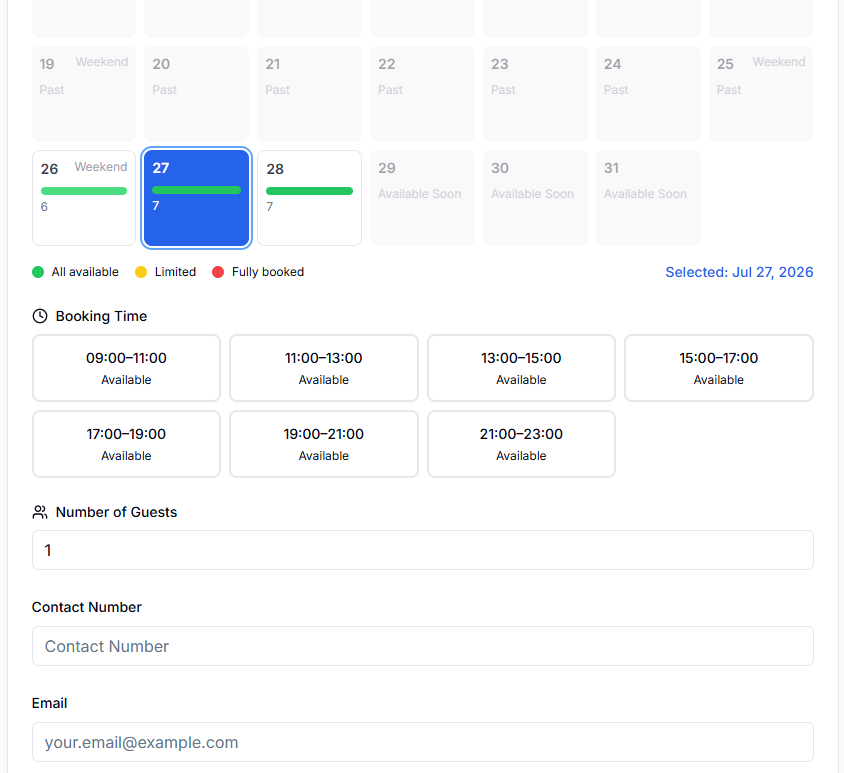
- Select the booking date from the calendar (only shows today + 2 days)
- Choose a time slot from available slots (green = available, red = fully booked)
- Enter number of guests (pax) - Maximum 50 guests
- Enter your contact number
- Enter your email address
- Add any remarks (optional)
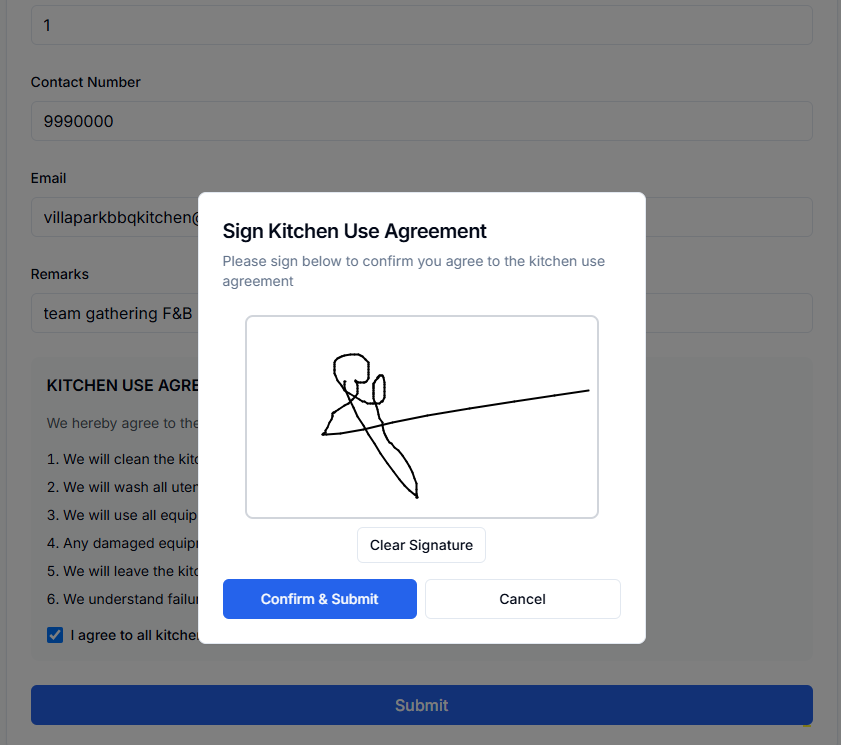
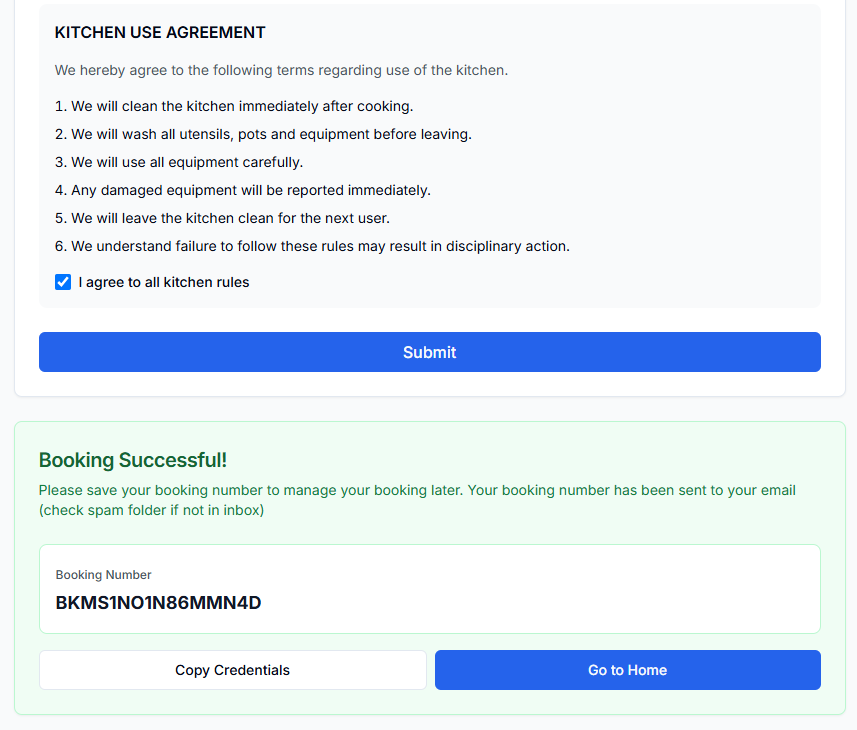
- Agree to the terms and conditions
- Sign using the signature pad
- Click "Submit Booking"
- Save your Booking Number for future reference
3. Managing Your Bookings
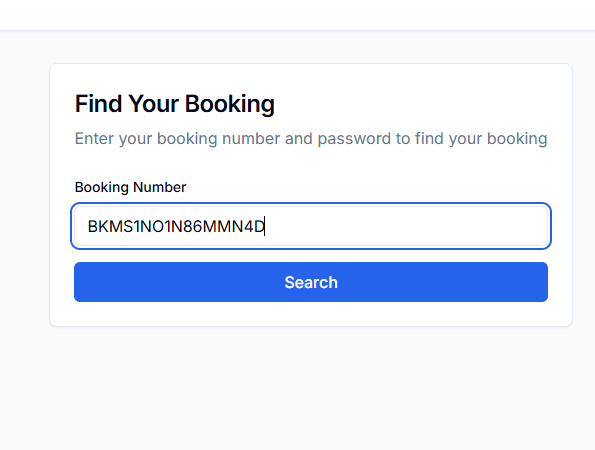
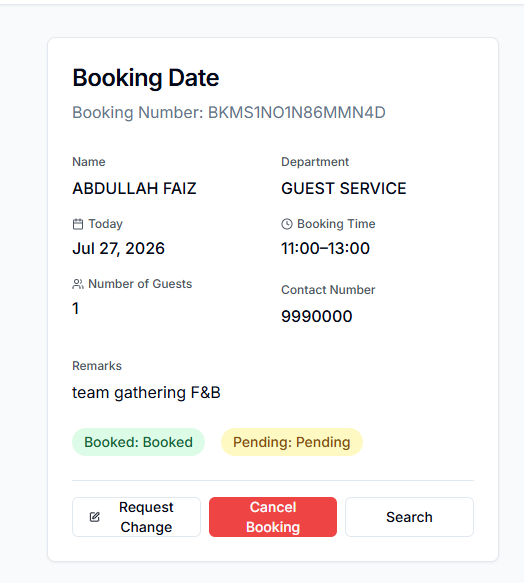
To view or change your existing bookings, click "Manage Booking" on the home page and enter your booking number. You can request date/time changes or cancel your booking.
4. Requesting Date/Time Changes
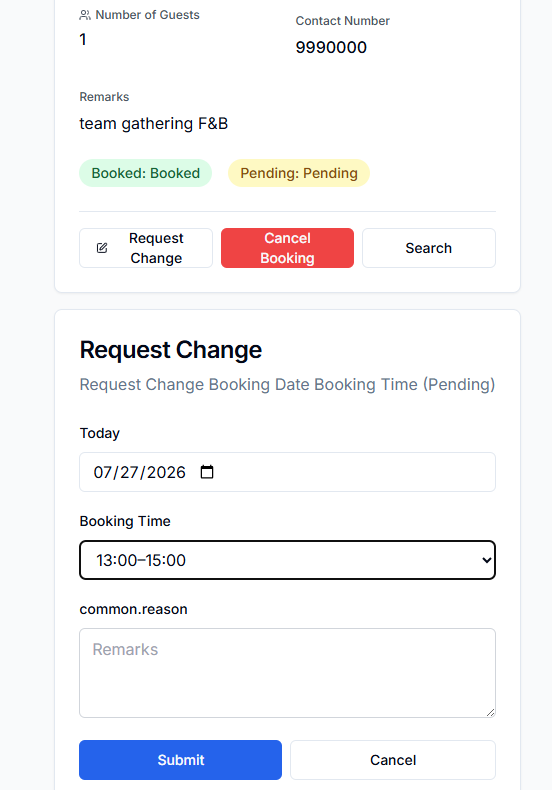
You can request to change your booking date or time. Changes require admin approval. Submit your request at least 2 hours before your current slot.
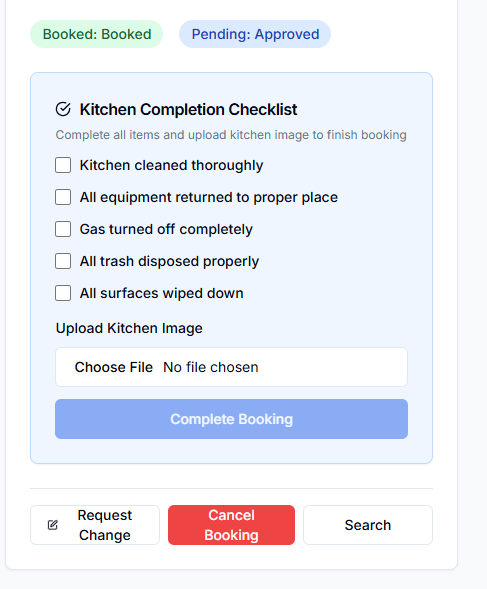
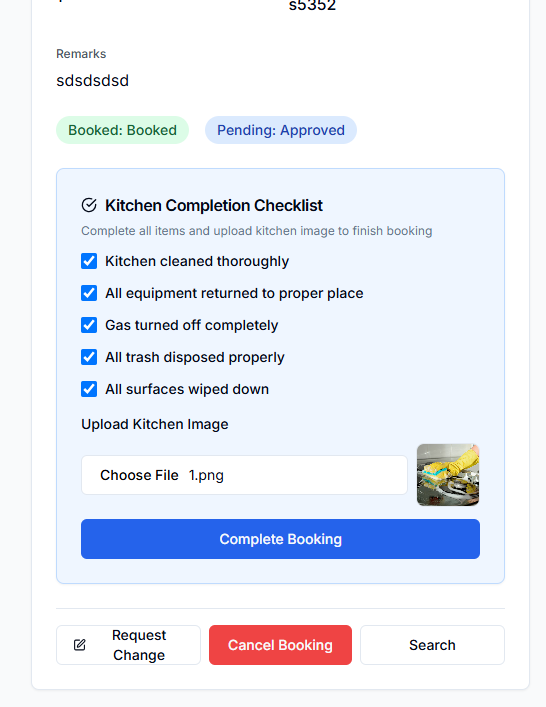
5. Cleanup Checklist
After using the kitchen, complete the cleanup checklist: kitchen cleaned, equipment returned, gas turned off, trash disposed, surfaces wiped. Upload a photo of the clean kitchen.